By: CS2103T-T12-3 Since: Sep 2019 Licence: MIT
- 1. Introduction
- 2. Quick Start
- 3. Features
- 3.1. Adding an event :
event - 3.2. Adding a player :
add - 3.3. Attendance
- 3.4. Tracking performance :
performance - 3.5. Clearing the data :
clear - 3.6. Deleting a person :
delete - 3.7. Filtering members :
filter - 3.8. Finding a certain player :
find - 3.9. Selecting a player :
select - 3.10. Viewing help :
help - 3.11. Viewing history :
- 3.12. Undoing a command :
undo - 3.13. Redoing a command :
redo - 3.14. Importing data :
import - 3.15. Exporting data :
export - 3.16. Sorting list of players by names or performance :
sort - 3.17. Tagging a player :
tag - 3.18. Team roster [coming in v2.0]
- 3.19. Performance tracker [coming in v2.0]
- 3.20. Saving the data
- 3.1. Adding an event :
- 4. FAQ
- 5. Command Summary
1. Introduction
Athletick is a team management app for team captains or coaches. The app supports storing of team members' personal details, attendance tracking and performance recording. More importantly, Athletick is optimized for those who prefer to work with a Command Line Interface (CLI) while still having the benefits of a Graphical User Interface (GUI). If you can type fast, Athletick can get your team management tasks done faster than traditional GUI apps. Interested? Jump to the Section 2, “Quick Start” to get started. Enjoy!
2. Quick Start
-
Ensure you have Java
11or above installed in your Computer. -
Download the latest
athletick.jarhere. -
Copy the file to the folder you want to use as the home folder for your Athletick.
-
Double-click the file to start the app. The GUI should appear in a few seconds.
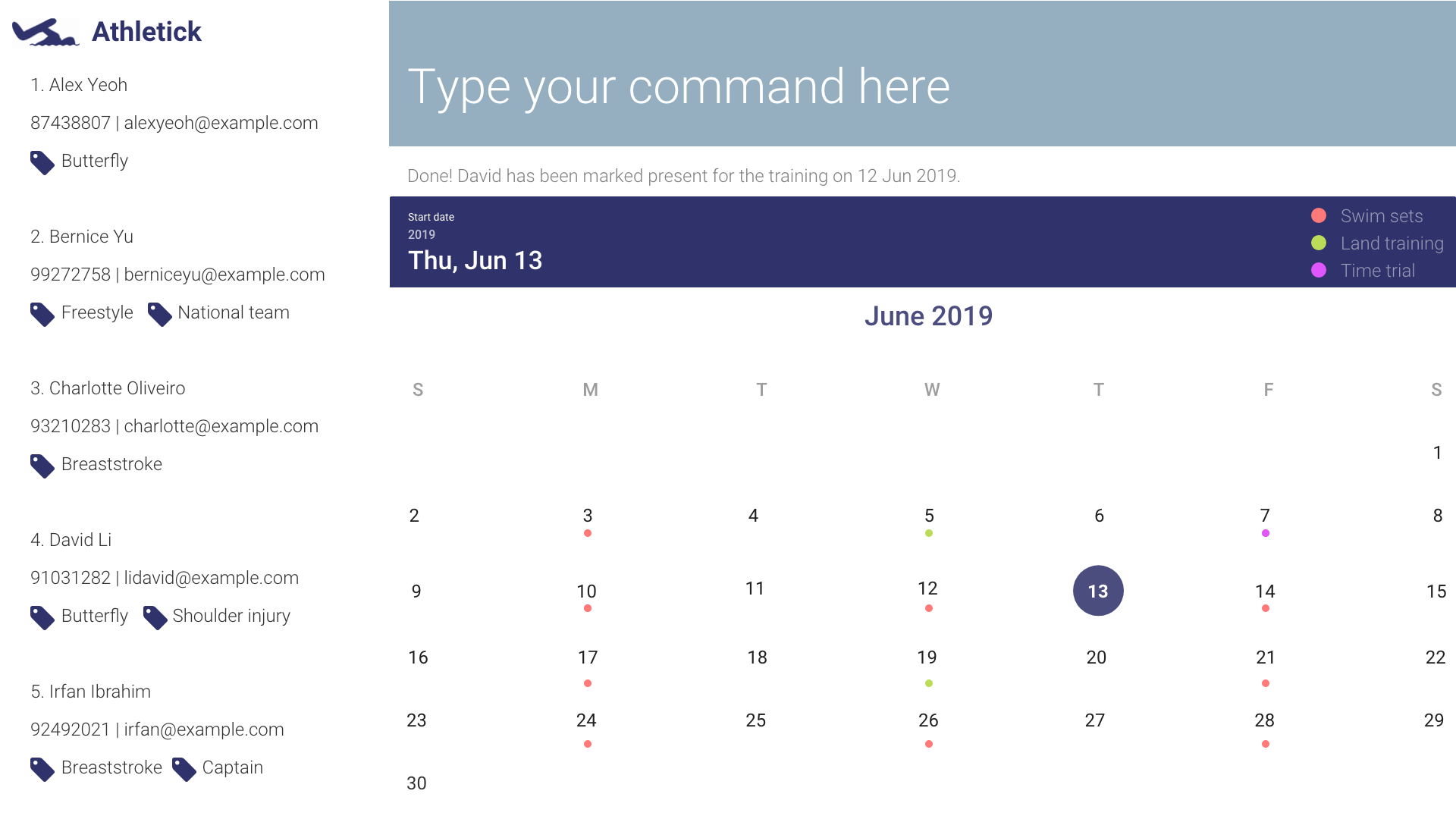
-
Type the command in the command box and press Enter to execute it.
e.g. typinghelpand pressing Enter will open the help window. -
Refer to Section 3, “Features” for details of each command.
3. Features
Command Format
-
Words in
UPPER_CASEare the parameters to be supplied by the user e.g. inadd n/NAME,NAMEis a parameter which can be used asadd n/John Doe. -
Items in square brackets are optional e.g
n/NAME [t/TAG]can be used asn/John Doe t/friendor asn/John Doe. -
Items with
… after them can be used multiple times including zero times e.g.[t/TAG]…can be used ast/friend,t/friend t/familyetc. -
Parameters can be in any order e.g. if the command specifies
n/NAME p/PHONE_NUMBER,p/PHONE_NUMBER n/NAMEis also acceptable.
3.1. Adding an event : event
Adds an event to Athletick. Used for keying player performance.
Format : event NAME_OF_EVENT
3.2. Adding a player : add
Adds a person to Athletick.
Format : add n/NAME p/PHONE_NUMBER e/EMAIL g/GENDER
Examples:
add n/James Ho p/91234567 e/jamesho@gmail.com g/M
3.3. Attendance
3.3.1. Taking attendance : attendance
Mark attendance of players
-
By members present
-
Format by name :
attendance -tn n/NAME [n/NAME] [n/NAME] …Examples :
attendance -tn n/Erwin n/Jun Hup n/Shawn n/Dom n/Jeun Hoe -
Format by index :
attendance -ti INDEX [INDEX] [INDEX ] …Examples :
-
-
By members absent
-
Format by name :
attendance -tn -a n/NAME [n/NAME] [n/NAME] …Examples:
-
Format by Index :
attendance -ti -a INDEX [INDEX] [INDEX ] …Examples :
-
3.3.2. Viewing attendance : attendance -v
Viewing overall attendance
Format by percentage : attendance -v -p
Format by date : attendance -v -t [dd/mm/yy]
3.4. Tracking performance : performance
Keying in performance of player in event.
Format: performance INDEX EVENT TIMING
Examples :
3.5. Clearing the data : clear
Clears the entire data in the program.
Format: clear
3.6. Deleting a person : delete
Deletes player from training list, either by index or by name.
-
Format by name :
delete n/NAMEExample :
delete n/james ho -
Format by index :
delete INDEX
Example :
delete 2
3.7. Filtering members : filter
Filters the members based on the gender or position.
-
Format by gender:
filter GENDERExamples :
filter male
filter female
3.8. Finding a certain player : find
Finds a player by name.
Format : find n/NAME
Example :
find n/James Ho
3.9. Selecting a player : select
Selects a member which will display their details.
Format : select INDEX
Example:
3.10. Viewing help : help
Format : help
3.12. Undoing a command : undo
Format : undo
3.13. Redoing a command : redo
Format : redo
3.14. Importing data : import
Format: import FILEPATH
3.15. Exporting data : export
Format: export FILEPATH
3.16. Sorting list of players by names or performance : sort
-
Format by name:
sort n -
Format by performance:
sort p
3.20. Saving the data
Address book data are saved in the hard disk automatically after any command that changes the data.
There is no need to save manually.
4. FAQ
Q: How do I transfer my data to another Computer?
A: Install the app in the other computer and overwrite the empty data file it creates with the file that contains the data of your previous Address Book folder.
5. Command Summary
-
Add event
event NAME_OF_EVENT -
Add player
add n/NAME p/PHONE_NUMBER e/EMAIL g/GENDER
e.g.add n/James Ho p/91234567 e/jamesho@gmail.com g/M -
Take attendance by members present
-
By Name
attendance -tn n/NAME [n/NAME] [n/NAME] …
e.g.attendance -tn n/Erwin n/Jun Hup n/Shawn n/Dom n/Jeun Hoe -
By index
attendance -ti INDEX [INDEX] [INDEX ] …
-
-
Take attendance by members absent
-
By name
attendance -tn -a n/NAME [n/NAME] [n/NAME] … -
By index
attendance -ti -a INDEX [INDEX] [INDEX ] …
-
-
View Attendance
-
By percentage
attendance -v -p -
By date
attendance -v -t [dd/mm/yy]
-
-
Add performance
performance -a INDEX EVENT TIMING -
View performance
performance -v e/EVENT -
Clear :
clear -
Delete
-
By index
delete INDEX
e.g.delete 2 -
By name
delete n/NAME
e.g.delete n/james ho
-
-
Filter
-
By gender
filter GENDER
e.g.filter male
-
-
Find
find n/NAME
e.g.find n/James Ho -
Select
select INDEX -
Help
help -
History
history -
Undo
undo -
Redo
redo -
Import
import FILEPATH -
Export
export FILEPATH -
List
list -
Sort
-
By name
sort n -
By performance
sort p
-
-
Tags
tag n/NAME t/NAME_OF_TAG
e.g.tag n/James Ho t/captain